
SMS Consent Disclosure
How users opt in to receive SMS notifications from Elvin, what messages they receive, and how to opt out at any time.
Program name
Elvin SMS Notifications
Operated by Elvin Inc.
Elvin is a proactive AI productivity platform for managers. We use SMS to deliver task confirmations, workflow updates, and actionable notifications to users who have opted in.
How users opt in
Opt-in happens entirely through the signed-in web app. The user enters their phone number in their account settings, reads the consent disclosure shown next to the field, and clicks Save. No SMS messages are sent until the user has completed this step.
Step 1: Create an account
The user signs up for an Elvin account at tryelvin.com.
Step 2: Open Settings → Integrations → SMS Integration
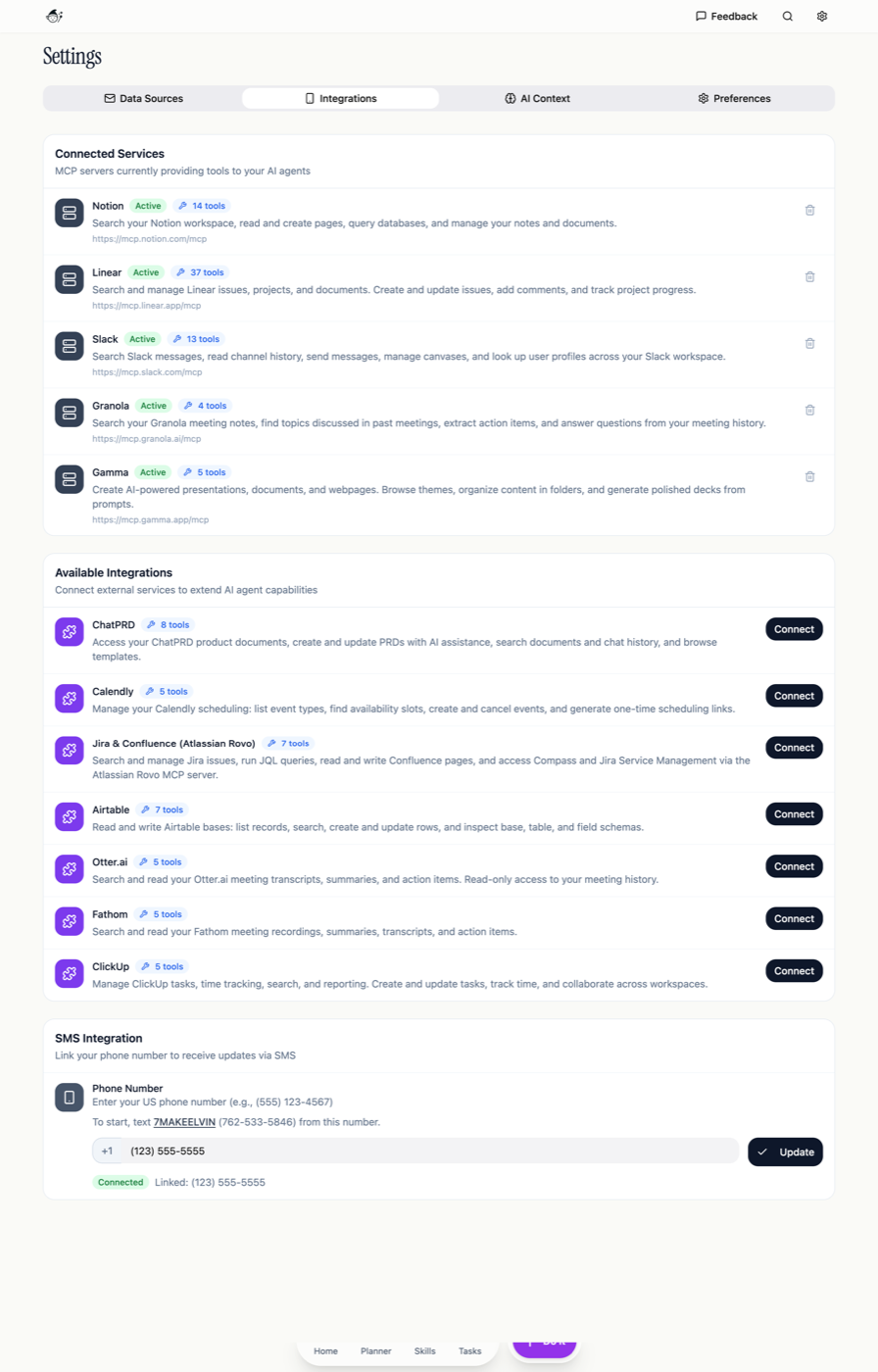
While signed in, the user opens the Settings page and selects the Integrations tab. The SMS Integration card contains the Phone Number field where opt-in takes place.
Step 3: Enter a US phone number and read the consent disclosure
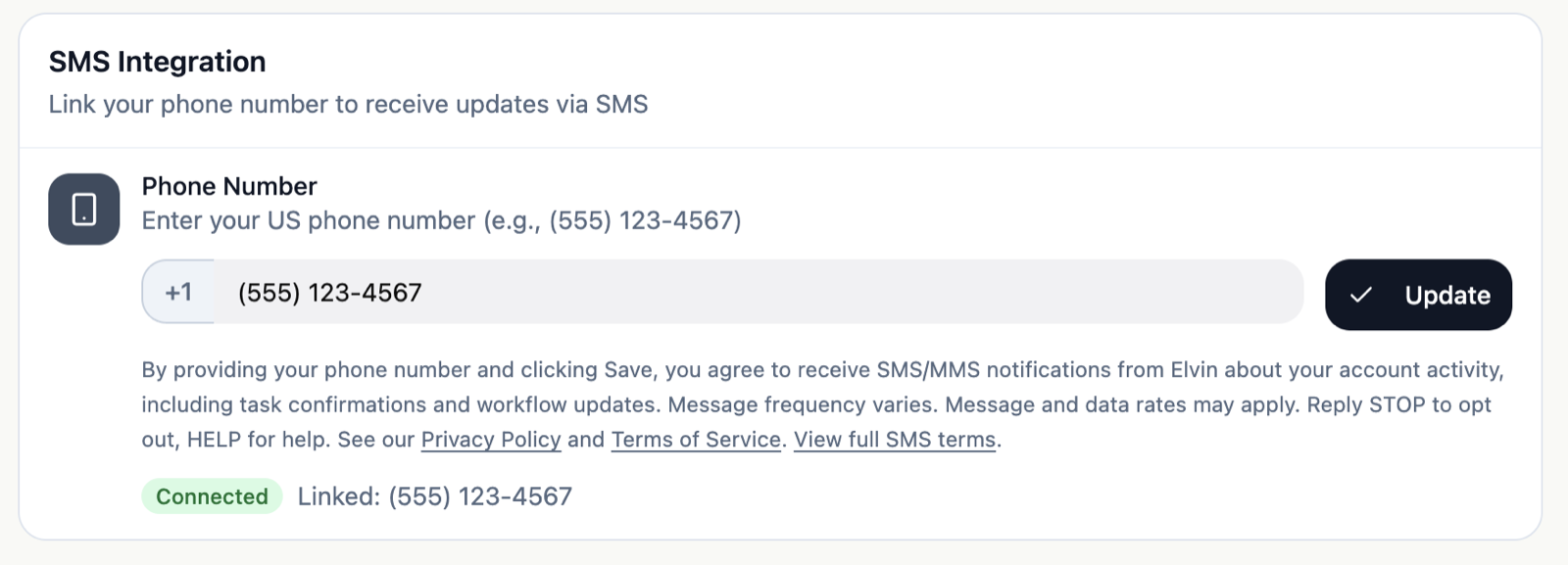
Directly below the phone number input, before the user clicks Save, the following consent disclosure is shown in plain view:
Step 4: Click Save to opt in
Clicking Save after reviewing the disclosure constitutes the user's explicit opt-in. The phone number is then stored against their account, and the card updates to show a green Connected badge alongside the linked phone number. From this point, the user will receive SMS notifications related to their account activity.
Message types and frequency
Message types. Task confirmations, workflow updates, action reminders, and system notifications related to the user's account activity.
Frequency. Message frequency varies based on user activity. Typically 1–10 messages per week, depending on usage.
Rates. Message and data rates may apply, depending on the user's mobile carrier and plan.
How to opt out
Users can stop receiving SMS messages from Elvin at any time:
- Reply STOP (or any supported opt-out keyword) to any SMS message from Elvin, or
- Remove the linked phone number in Settings → Integrations → SMS Integration at tryelvin.com.
Upon opting out, the user will receive one final confirmation message:
Help and support
Users can reply HELP to any SMS message from Elvin to receive support information. For any other questions, contact us at support@tryelvin.com.
Supported keywords
| Action | Keywords |
|---|---|
| Opt out | STOP, STOPALL, UNSUBSCRIBE, CANCEL, END, QUIT, OPTOUT, REVOKE |
| Help | HELP, INFO |
| Re-subscribe | START, YES, UNSTOP |
Privacy and terms
- Privacy Policy. Covers how we collect, use, and protect user data, including phone numbers.
- Terms of Service. The agreement governing use of Elvin.
Phone numbers and consent records are never shared, sold, or rented to third parties for marketing purposes. Phone numbers are used solely to deliver the SMS messages described above.